How to Change Your IP Address Easily (Step-by-Step)
Whether you've been unfairly banned from a forum, you're experiencing a strange networking glitch, or you simply want to protect your digital privacy from trackers, knowing how to change your IP address is an essential skill. However, the process depends entirely on which IP address you want to change: your Public IP (seen by the internet) or your Private IP (seen only by devices in your home).
Quick Tip Before You Start
Before making any changes, check your current Public IP here and write it down. This way, you can verify if your attempt to change it was successful!
Part 1: How to Change Your Public IP Address
Your Public IP is the digital address the outside world sees. It is assigned to your modem/router by your Internet Service Provider (ISP). To change it, you have three primary methods.
Part 2: How to Change Your Private (Local) IP Address
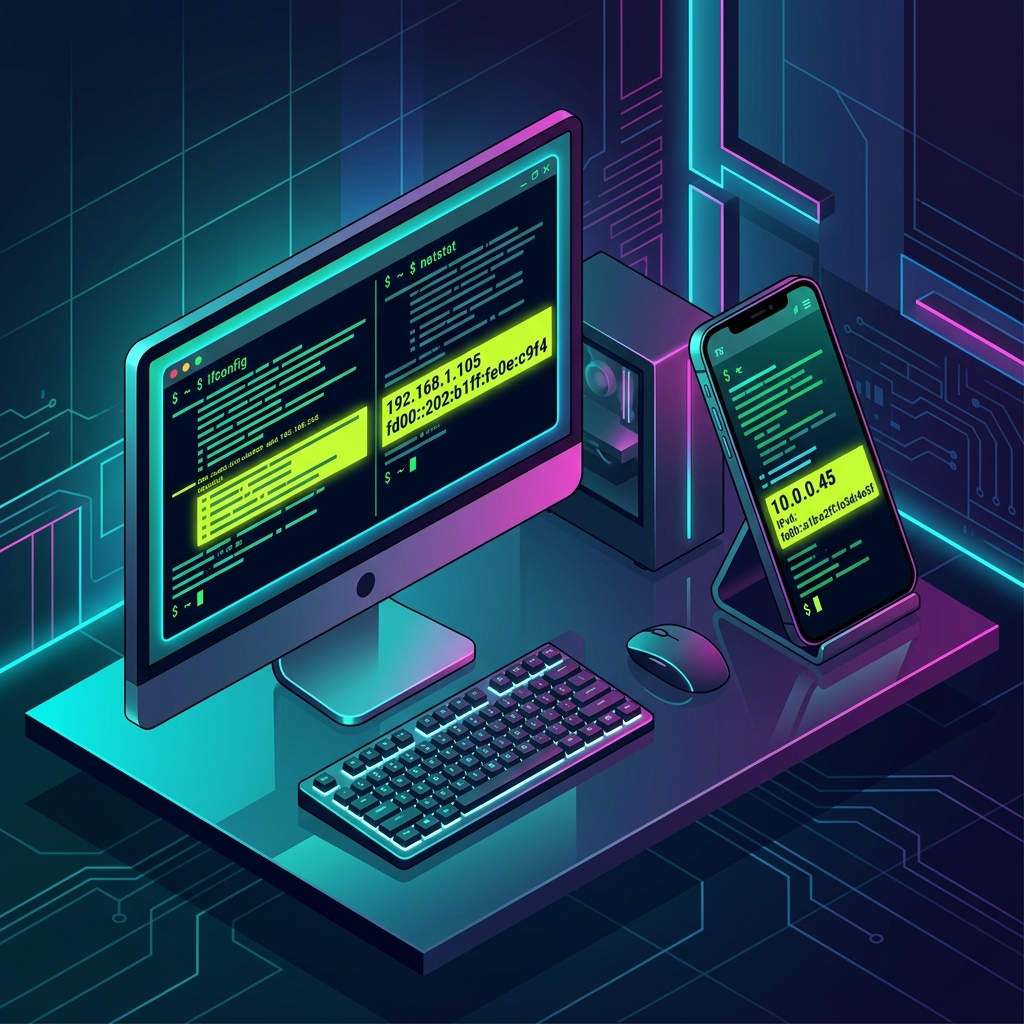
Your Private IP address (usually starting with 192.168) is assigned by your Wi-Fi router to identify your specific device within your home. Sometimes, an "IP Conflict" occurs, and you need to force your device to get a new one.
Changing Local IP on Windows (Renew Lease)
- Open the Start menu, type
cmd, right-click Command Prompt and select Run as administrator. - Type
ipconfig /releaseand hit Enter. This drops your current IP. Your internet will briefly disconnect. - Type
ipconfig /renewand hit Enter. Your router will assign you a new, fresh local IP address.
Changing Local IP on macOS
- Click the Apple Logo > System Settings (or System Preferences).
- Click on Network and select your active connection (Wi-Fi or Ethernet).
- Click the Details or Advanced button.
- Click on the TCP/IP tab.
- Click the Renew DHCP Lease button.
Changing Local IP on iOS (iPhone/iPad)
- Open the Settings app and tap on Wi-Fi.
- Tap the blue "i" icon next to your connected network.
- Scroll down and tap Renew Lease. Confirm the action when prompted.
Changing Local IP on Android
- Open Settings > Network & internet > Wi-Fi.
- Tap the gear icon next to your network, then tap Forget.
- Reconnect to the Wi-Fi network and enter the password. The router will assign a new local IP upon reconnection.
Frequently Asked Questions
Will changing my IP make my internet faster?
Usually, no. An IP address is just an identifier, not a speed metric. However, if your ISP was deliberately throttling your specific IP address, or if you were experiencing a routing glitch, getting a new IP might occasionally resolve the slowdown.
Can I change my IP to another country for free?
Yes, you can use free VPNs or the Tor browser to appear as if you are in another country. However, free VPNs are notoriously slow and often sell your browsing data. If you need to regularly spoof your location, investing in a paid VPN is highly recommended.
Does restarting my computer change my IP?
Restarting your computer might renew its lease and change your Private IP address, but it will have absolutely no effect on your Public IP address, as that is controlled by your modem/router.
Related Articles