How to Change Your IP Address Without a VPN: A Step-by-Step Technical Guide
While Virtual Private Networks (VPNs) are the most popular solution for masking online identity, they are far from the only method available. Whether you are troubleshooting local network conflicts, bypassing a temporary block, or enhancing your digital privacy, understanding how IP addressing works at a fundamental network layer allows you to change your address manually without relying on commercial VPN software.
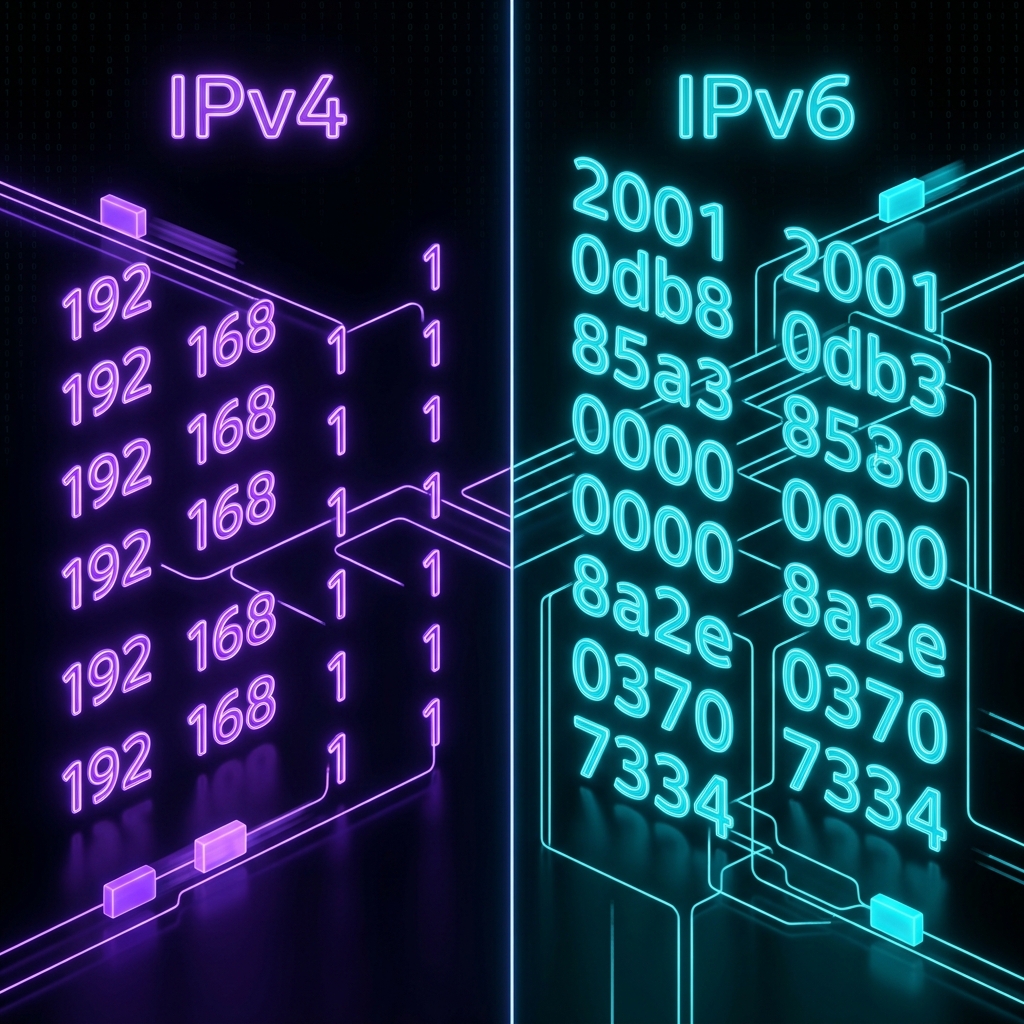
Before diving into the steps, it is crucial to distinguish between your Local (Private) IP Address—assigned by your home router to devices on your local network—and your Public IP Address—assigned by your Internet Service Provider (ISP) to identify your home connection to the broader internet. According to network architecture guides from Cloudflare, changing your IP requires different tactics depending on which layer you wish to modify.
Method 1: Power Cycle Your Modem and Router (Change Public IP)
Most residential ISPs assign dynamic IP addresses using the Dynamic Host Configuration Protocol (DHCP). These IP assignments are temporary and governed by lease periods. You can often force your ISP to issue a new public IP address by terminating the connection long enough for the lease to expire.
Step-by-Step Instructions:
- Unplug the power cables from both your modem and wireless router.
- Wait 10 to 15 minutes. This delay gives your ISP's DHCP server time to recognize your lease as expired and reassign your old IP to another customer.
- Plug the modem back in first and wait until all connection lights stabilize.
- Plug the router back in and connect your device to check your new public IP via an online verification tool.
Method 2: Release and Renew IP Address via Command Line (Change Local IP)
If you are experiencing local IP conflicts or network connectivity glitches, forcing your computer to request a new local IP address from your router's DHCP pool is the most efficient fix.
On Windows:
- Press Windows Key + X and select Terminal (Admin) or Command Prompt (Admin).
- Type
ipconfig /releaseand press Enter. This disconnects your current local IP. - Type
ipconfig /renewand press Enter. Your device will request a fresh local IP from the router. - Flush your DNS cache to clear outdated entries by typing
ipconfig /flushdns.
On macOS:
- Open System Settings and click on Network.
- Select your active connection (Wi-Fi or Ethernet) and click Details.
- Navigate to the TCP/IP tab.
- Click Renew DHCP Lease and press OK.
Method 3: Configure a Proxy Server
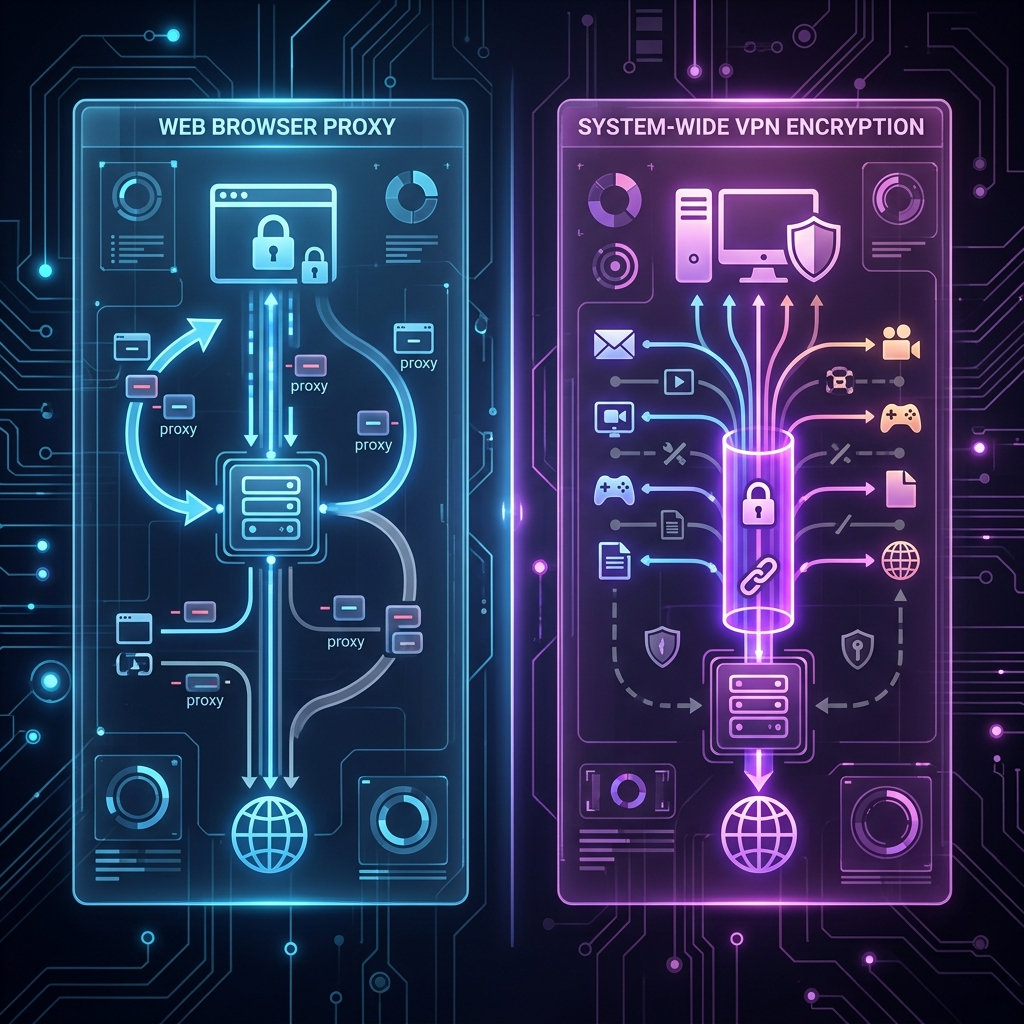
A proxy server acts as an intermediary between your device and the internet. When you route your traffic through a proxy, target websites see the IP address of the proxy server rather than your actual public IP address.
Unlike VPNs, which encrypt all network traffic from your operating system, standard HTTP/SOCKS proxies generally operate at the application level (such as inside a web browser).
How to Set Up a Proxy in Google Chrome:
- Open Chrome Settings and search for Proxy.
- Click Open your computer's proxy settings.
- Enable Use a proxy server under manual proxy setup.
- Enter the authoritative IP address and port number provided by a reputable proxy provider.
- Save the changes and test your connection.
Method 4: Use the Tor Network (Onion Routing)
For a high degree of privacy without purchasing a VPN subscription, you can use the Tor Project browser. Tor routes your internet traffic through a decentralized network of volunteer-operated servers (relays).
Your connection passes through three layers of encryption: the entry node, the middle relay, and the exit node. Target websites will only detect the IP address of the Tor Exit Node, completely masking your origin IP.
Method 5: Connect to a Mobile Hotspot
If you need a completely different public IP address instantly without altering your home hardware, switch network connections to your smartphone's mobile hotspot.
- Enable Personal Hotspot on your Android or iOS device.
- Disconnect your computer from your home Wi-Fi network.
- Connect your computer to the smartphone hotspot.
Because your cellular provider operates an entirely separate network infrastructure from your residential broadband ISP, your device will immediately broadcast a new mobile public IP address.
Method 6: Change Your Router's WAN MAC Address
Some ISPs tie your public IP address directly to the Media Access Control (MAC) address of your router's WAN port. If restarting the modem does not change your IP, cloning or altering the WAN MAC address in your router settings will fool the ISP's DHCP server into thinking a brand-new device has been plugged in, forcing an immediate IP reassignment.
- Log into your router's administration interface (typically
192.168.1.1or192.168.0.1). - Locate the MAC Clone or WAN Network settings menu.
- Select Clone Computer's MAC Address or manually alter the last digit of the existing MAC address.
- Save settings and reboot both your modem and router.
Related Articles