How to Hide Your IP Address on a Smart TV Without a VPN
Why Hide Your IP Address on a Smart TV?
Smart TVs have transformed home entertainment, but they also collect significant amounts of user data, track viewing habits, and rely on location-based IP addresses to restrict content. While Virtual Private Networks (VPNs) are the go-to solution for privacy on computers and smartphones, popular Smart TV operating systems—such as Samsung's Tizen, LG's webOS, and Roku OS—do not natively support VPN applications.
Fortunately, you can conceal or alter your Smart TV's IP address without installing a VPN client directly onto the device. Below, we cover the most effective network techniques to mask your identity, bypass local network throttling, and protect your home streaming privacy.
Method 1: Configure SmartDNS on Your Smart TV
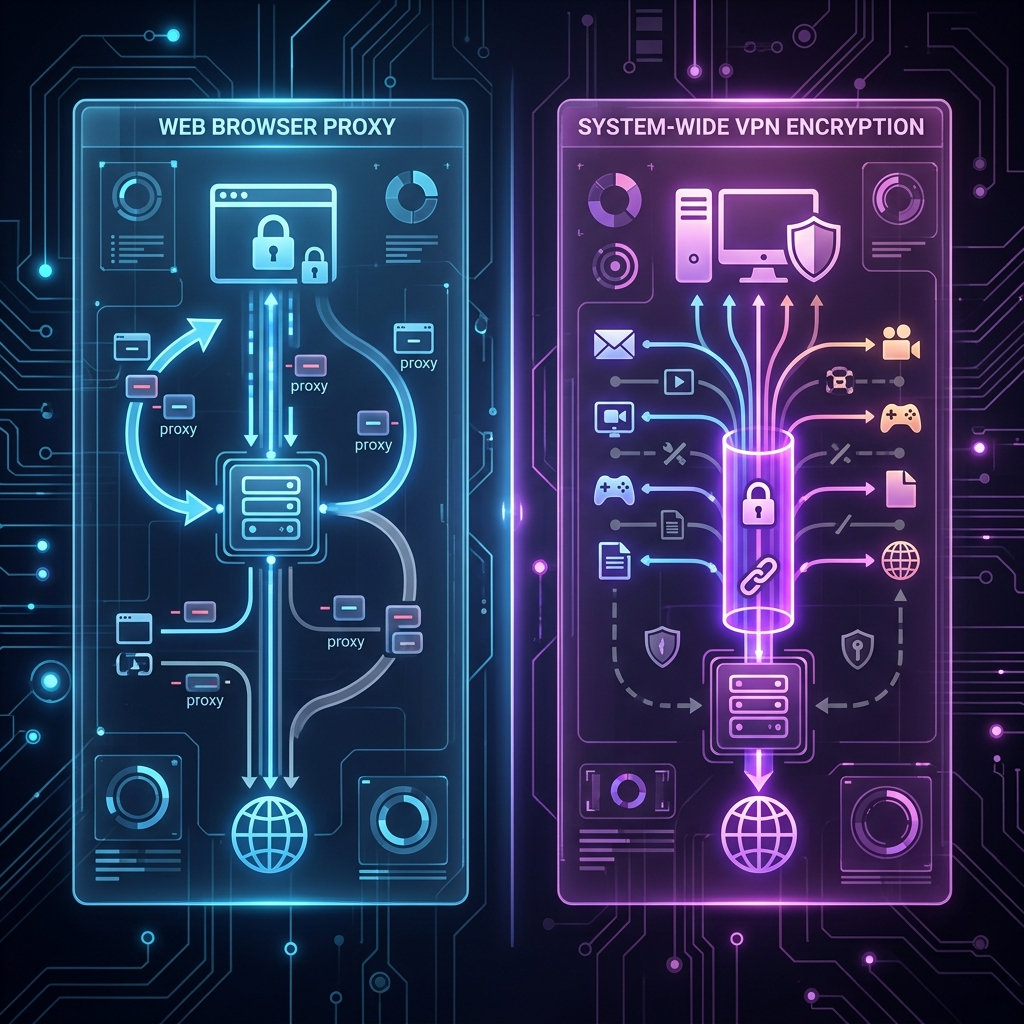
SmartDNS is one of the most effective non-VPN solutions for Smart TVs. Unlike a traditional VPN that encrypts all internet traffic and routes it through an encrypted tunnel, SmartDNS only redirects your Domain Name System (DNS) requests. This alters the geographic footprint of your IP address without the speed overhead caused by encryption algorithms.
How to set up SmartDNS on your Smart TV:
- Step 1: Subscribe to a reputable SmartDNS provider or activate SmartDNS in your existing privacy service dashboard.
- Step 2: Register your actual home IP address on the provider's website to whitelist your connection.
- Step 3: On your Smart TV, navigate to Settings > Network > Advanced Network Settings.
- Step 4: Change the DNS settings from Automatic to Manual.
- Step 5: Enter the primary and secondary DNS server addresses provided by your SmartDNS service and save changes.
- Step 6: Restart your Smart TV to begin routing DNS requests through the new IP location.
Method 2: Route TV Traffic Through a PC or Mac Proxy Server
If you want to alter your Smart TV's outbound public IP address without touching your router, you can turn a desktop or laptop on your local network into a local HTTP or SOCKS proxy server.
By setting up a proxy server on your computer, your Smart TV routes its internet traffic through your computer's network interface, masking the Smart TV's independent IP footprint on local and external logs.
Steps to set up a local proxy:
- Step 1: Install proxy software (such as CCProxy on Windows or Squid on macOS/Linux) on a computer connected to the same Wi-Fi network as your TV.
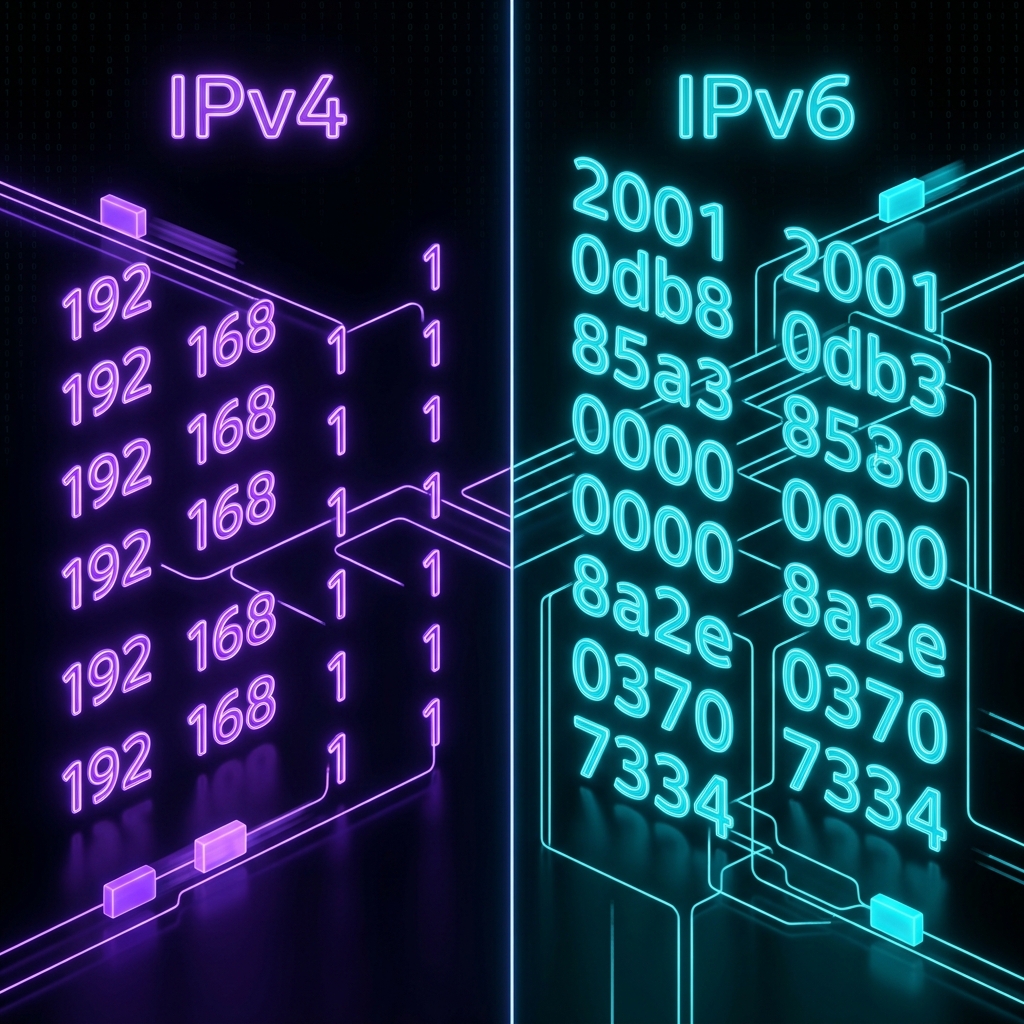
- Step 2: Obtain the local IPv4 address of your computer (e.g.,
192.168.1.50) via command prompt (ipconfigorifconfig). - Step 3: Open your Smart TV's network menu and select your active Wi-Fi connection.
- Step 4: Access Advanced IPv4 Settings or Proxy Settings (available on Android TV and select webOS versions).
- Step 5: Enter your computer's local IP address and the port assigned by your proxy software (usually
8080or1080).
Method 3: Connect via a Mobile Hotspot
A simple yet effective way to change your Smart TV's public IP address immediately is by connecting it to a cellular network via a smartphone hotspot. Cellular providers assign dynamic IP addresses from a pool that is separate from your residential Internet Service Provider (ISP).
While this method relies on cellular data limits, it is ideal for short streaming sessions when you need an immediate IP change without software configuration.
- Step 1: Turn on the Personal Hotspot feature on your cellular device.
- Step 2: Disconnect your Smart TV from your home Wi-Fi network.
- Step 3: Scan for wireless networks on your Smart TV and select your phone's hotspot access point.
- Step 4: Verify the IP change by visiting a network diagnostic tool via the Smart TV web browser.
Method 4: Use a Raspberry Pi as a Transparent Network Gateway
For advanced users, setting up a Raspberry Pi configured with Tor or custom routing rules creates an isolated network gateway. By plugging the Smart TV directly into the Raspberry Pi via an Ethernet cable or linking to its custom Wi-Fi access point, all Smart TV traffic is intercepted and repackaged before hitting your main modem.
Advantages of a Gateway Device:
- Zero software needed on the TV: The Smart TV perceives the Raspberry Pi as a standard router.
- Granular privacy controls: You can block telemetry, telemetry tracking domains, and intrusive smart TV advertisements at the hardware interface level.
- Custom DNS filtering: Run Pi-hole alongside IP redirection for enhanced speed and privacy.
SmartDNS vs. Proxy vs. VPN: Key Differences
Choosing the right non-VPN method depends on your goal: speed, privacy, or ease of setup. Here is how these alternatives compare:
- SmartDNS: Best for high-speed streaming. Changes perceived location for media services, but does not encrypt data or alter non-DNS IP traffic.
- Proxy Server: Good for hiding local device identifiers and rerouting web traffic. Provides moderate location spoofing but lacks full system-wide encryption.
- Mobile Hotspot: Instant residential IP change via cellular network. Useful for troubleshooting, but subject to mobile data caps.
Final Considerations for Smart TV Privacy
While bypassing a native VPN app on your Smart TV requires alternative configurations, techniques like SmartDNS and proxy sharing are highly effective. For general geographic content access and basic IP concealment, SmartDNS remains the fastest and most user-friendly approach for platforms like LG webOS and Samsung Tizen. If your priority is blocking telemetry and tracking, setting up a custom gateway proxy or DNS-filtering hardware offers the highest level of network security.
Related Articles