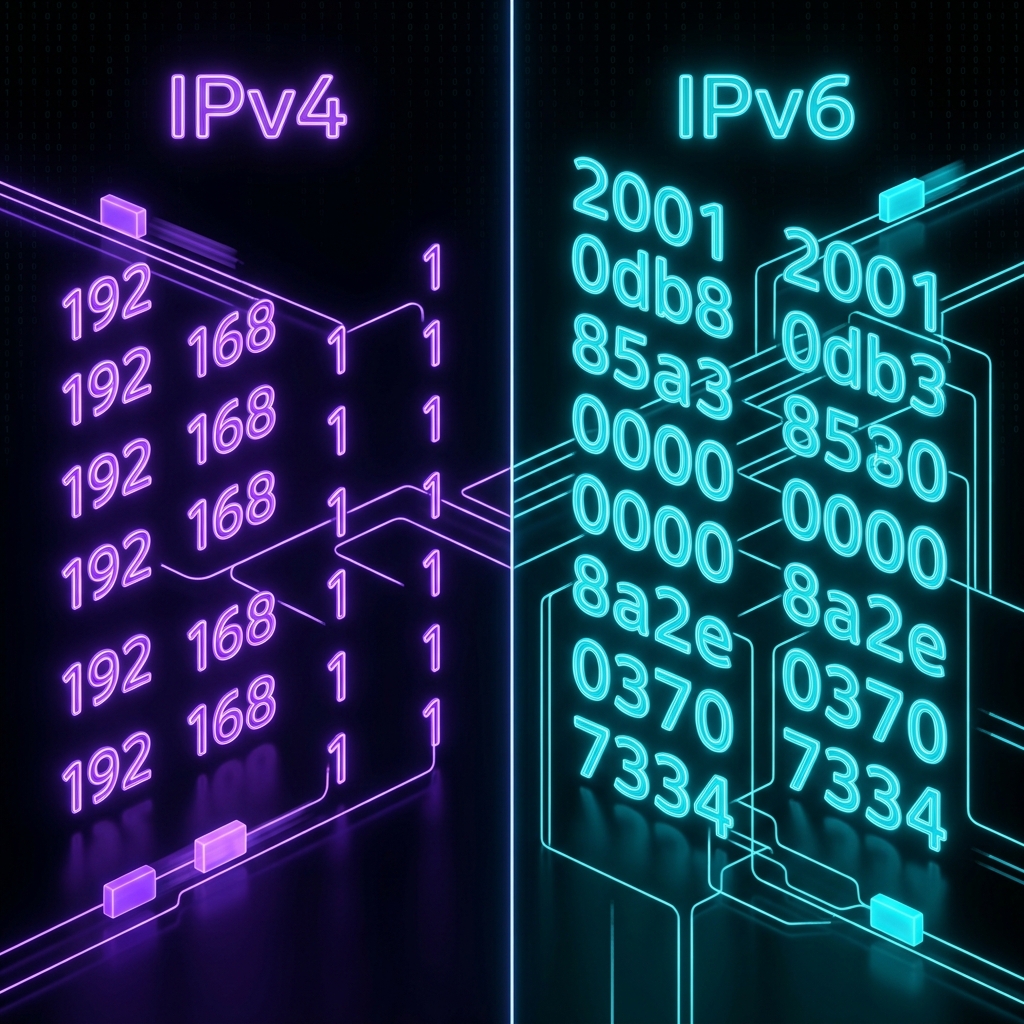
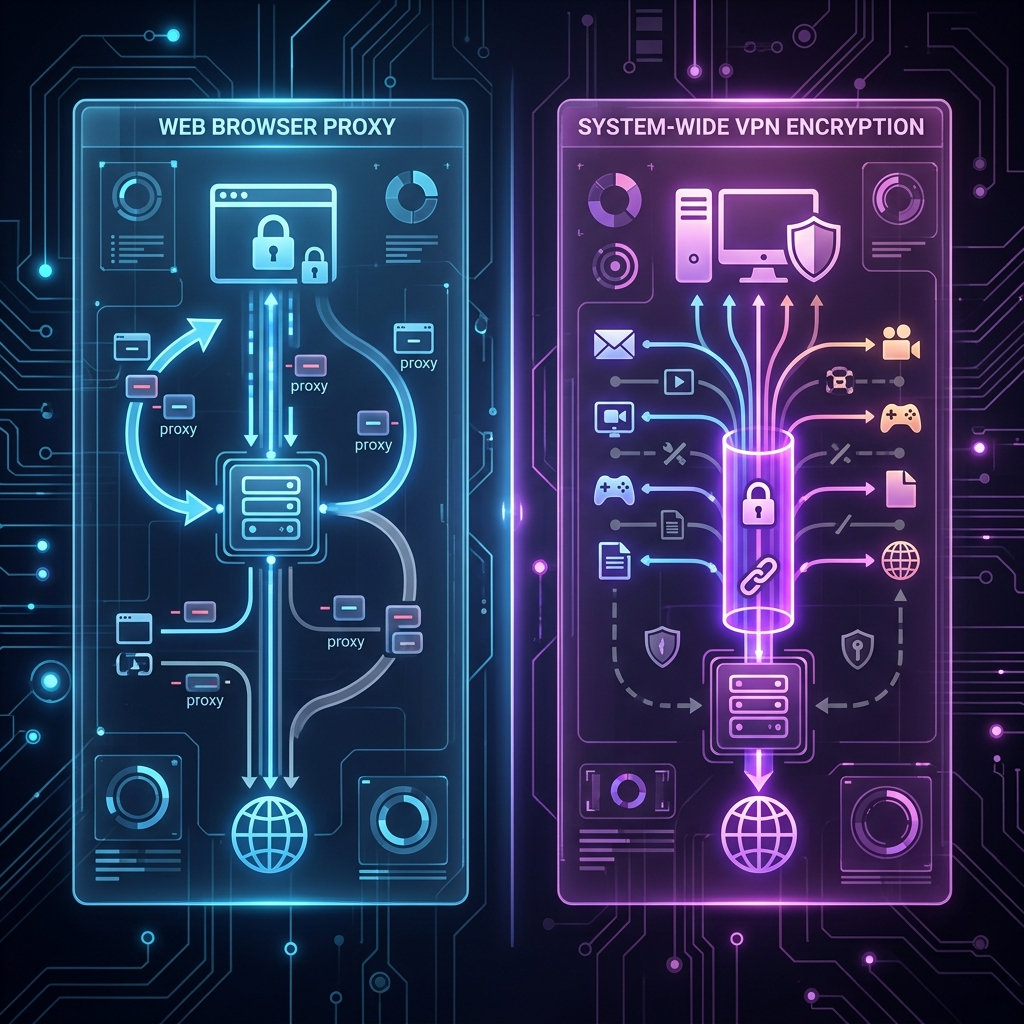
Whether you're trying to set up a new network printer, host a gaming server, troubleshoot internet connectivity issues, or configure remote desktop access, knowing how to find your IP address is a fundamental digital skill. But before you start looking, you must understand that your device actually has two different types of IP addresses: a Public IP and a Private (Local) IP.
Did You Know?
Over 90% of residential users have a Dynamic IP address that changes periodically.
Your Public IP is assigned by your ISP, while your Private IP is assigned by your Wi-Fi router.
A Private IP usually starts with 192.168 or 10.0.
Step 1: Determine Which IP You Need
Before you start digging into your device's settings, you need to know which IP address you are actually looking for. Use this quick guide:
Public IP Address
The address the outside internet sees. You need this to:
Host an online multiplayer game
Remotely access your home network
Bypass IP bans or whitelists
Private (Local) IP Address
The address used inside your home network. You need this to:
Connect to a wireless printer
Access your router's admin settings
Share files between local computers
How to Find Your Public IP Address
Finding your public IP address is incredibly simple because you don't need to dive into system settings. Any website you visit already knows it. The fastest way to find it is to simply use a tool like ours.
Finding your private, local IP address requires looking into the network settings of your specific device. Select your operating system below to see the exact steps.
What is my IP address on my computer (Windows)?
If you want to know what is my IP address on my computer running Windows, you can find it in a few clicks:
Method 1: Command Prompt (Fastest)
Press the Windows Key, type cmd, and hit Enter to open the Command Prompt.
Type exactly: ipconfig and press Enter.
Look for the line that says IPv4 Address under your active connection (Wi-Fi or Ethernet). The number (e.g., 192.168.1.15) is your local private IP address.
Method 2: Windows Settings (Visual)
Click Start > Settings (the gear icon).
Go to Network & Internet.
Select Properties under your active network connection.
Scroll down to the properties section; your local address will be listed next to IPv4 address.
What is my IP address on my computer (macOS)?
If you want to know what is my IP address on my computer running Mac OS, choose one of these options:
Method 1: System Settings
Click the Apple Logo in the top left corner of your screen.
Select System Settings (or System Preferences on older versions).
Click Network in the sidebar.
Select your active connection (Wi-Fi or Ethernet) and click Details or Advanced.
Your local address will be displayed next to IP Address.
Method 2: Terminal
Open Spotlight Search (Command + Space) and type Terminal.
Type exactly: ipconfig getifaddr en0 and press Enter. Note: If you are using Ethernet, try en1 instead of en0.
What is my IP address on my phone (iPhone & iPad)?
If you need to know what is my ip address private on my phone iphone while connected to a wireless network, use these steps (or read our in-depth guide comparing public vs private IP addresses):
Open the Settings app on your device.
Tap on Wi-Fi.
Find the Wi-Fi network you are currently connected to (it will have a blue checkmark next to it).
Tap the blue "i" (Information) icon on the right side of the network name.
Scroll down to the IPv4 Address section. Your local IP is listed next to IP Address.
How to find ip address on iphone 16
If you are using the iPhone 16 running iOS 18 or newer, the layout remains straightforward:
Go to Settings > Wi-Fi.
Tap the blue "i" icon next to your active connection.
Under the IPv4 section, you'll see IP Address (local Wi-Fi IP) and Router IP (Default Gateway).
If you have Private Wi-Fi Address turned on (recommended for security), your local MAC and IP address details will show up under this randomized interface section.
How to check iphone ip address without wifi
A very common question is: "how to check iphone ip address without wifi?" when you are connected via cellular/mobile data (LTE, 4G, or 5G):
No local private IP: When you turn off Wi-Fi and use cellular data, your iPhone does not have a private local network IP address (like 192.168.x.x) because it is not connected to a local router.
Direct Public IP: Instead, your mobile carrier (e.g., Verizon, T-Mobile, Vodafone) assigns a public IP address directly to your cellular connection.
How to check it: Simply open Safari or Google Chrome and go directly to our homepage to check whats my ip location right now. The IP address shown on our homepage is your cellular connection's public IP address.
What is my IP address on my phone (Android)?
If you're asking "what is my IP address WiFi" on an Android device to find your private IP address, follow these instructions:
Open your device's Settings app.
Tap on Network & internet (or Connections).
Tap on Wi-Fi.
Tap the gear icon next to your connected network (or tap the network name).
Expand the Advanced section if necessary.
Scroll down until you find the Network Details section. Your local IP will be listed under IP address.
How to Find Your Router's IP Address (Default Gateway)
Sometimes, instead of finding your computer's IP, you need to find your router's IP address (also known as the Default Gateway) to access its admin panel and change settings like your Wi-Fi password or port forwarding rules.
Windows: Open Command Prompt, type ipconfig, and look for Default Gateway.
Mac: Open Terminal, type route -n get default, and look for the IP next to gateway.
iOS: Go to Settings > Wi-Fi > tap the "i" icon > look for Router.
Android: Go to Settings > Wi-Fi > network settings > look for Gateway.
The vast majority of home routers will use either 192.168.1.1 or 192.168.0.1 as their default IP address.
Frequently Asked Questions
Does my IP address reveal my physical address?
No. A public IP address can reveal your general geographic area (city, region, or zip code) and your Internet Service Provider, but it cannot pinpoint your exact house or street address to the general public. Only your ISP has the records linking your IP to your physical billing address.
Can two devices have the same IP address?
On a public level, yes. Every device inside your house shares the exact same Public IP address assigned by your ISP. However, on your local network, your router ensures every device has a unique Private IP address. If two local devices get the same Private IP, it causes an "IP Conflict" error, and one or both devices will lose connection.
Is it dangerous if someone knows my IP address?
Generally, no. Your IP address is public by nature—every website you visit sees it. However, malicious actors can use it to launch targeted Denial of Service (DDoS) attacks to knock your home network offline, or they can use it to track your browsing habits across different websites.